
Walkthroughs

Bookmark and Share 

        
            Get Started                      Internet Explorer Information Bar       Windows Shortcut Keys            MAC & LINUX Shortcut Keys              Windows 7 Shortcuts


POST

posted May 10, 2012, 5:31 PM by Wise I.T.   [ updated May 11, 2012, 1:26 PM ]

Power On Self Test Error Codes

Standard Original IBM POST Error Codes

1 short beep Normal POST - system is ok
2 short beeps POST Error - error code shown on screen
No beep Power supply or system board problem
Continuous beep Power supply, system board, or keyboard problem
Repeating short beeps Power supply or system board problem
1 long, 1 short beep System board problem
1 long, 2 short beeps Display adapter problem (MDA, CGA)
1 long, 3 short beeps Enhanced Graphics Adapter (EGA)
3 long beeps 3270 keyboard card

IBM POST Diagnostic Code Descriptions

100 - 199

System Board
200 - 299 Memory
300 - 399 Keyboard
400 - 499 Monochrome Display
500 - 599 Color/Graphics Display
600 - 699 Floppy-disk drive and/or Adapter
700 - 799 Math Coprocessor
900 - 999 Parallel Printer Port
1000 - 1099 Alternate Printer Adapter
1100 - 1299 Asynchronous Communication Device, Adapter, or Port
1300 - 1399 Game Port
1400 - 1499 Color/Graphics Printer
1500 - 1599 Synchronous Communication Device, Adapter, or Port
1700 - 1799 Hard Drive and/or Adapter
1800 - 1899 Expansion Unit (XT)
2000 - 2199 Bisynchronous Communication Adapter
2400 - 2599 EGA system-board Video (MCA)
3000 - 3199 LAN Adapter
4800 - 4999 Internal Modem
7000 - 7099 Phoenix BIOS Chips
7300 - 7399 3.5" Disk Drive
8900 - 8999 MIDI Adapter
11200 - 11299 SCSI Adapter
21000 - 21099 SCSI Fixed Disk and Controller
21500 - 21599 SCSI CD-ROM System

AMI BIOS Beep Codes

1 Short Beep One beep is good! Everything is ok, that is if you see things on the screen. If you don't see anything, check your monitor and video card first. Is everything connected? If they seem fine, your motherboard has some bad chips on it. First reset the SIMM's and reboot. If it does the same thing, one of the memory chips on the motherboard are bad, and you most likely need to get another motherboard since these chips are soldered on.
2 Short Beeps  Your computer has memory problems. First check video. If video is working, you'll see an error message. If not, you have a parity error in your first 64K of memory. First check your SIMM's. Reseat them and reboot. If this doesn't do it, the memory chips may be bad. You can try switching the first and second banks memory chips. First banks are the memory banks that your CPU finds its first 64K of base memory in. You'll need to consult your manual to see which bank is first. If all your memory tests good, you probably need to buy another motherboard.
3 Short Beeps Basically the same thing as 2 beeps. Follow that diagnosis above.
4 Short Beeps Basically the same thing as 2 beeps. Follow that diagnosis above. It could also be a bad timer.
5 Short Beeps Your motherboard is complaining. Try reseating the memory and rebooting. If that doesn't help, you should consider another motherboard. You could probably get away with just replacing the CPU, but that's not too cost-effective. Its just time to upgrade!
6 Short Beeps The chip on your motherboard that controls your keyboard (A20 gate) isn't working. First try another keyboard. If it doesn't help, reseat the chip that controls the keyboard, if it isn't soldered in. If it still beeps, replace the chip if possible. Replace the motherboard if it is soldered in.
7 Short Beeps Your CPU broke overnight. Its no good. Either replace the CPU, or buy another motherboard.
8 Short Beeps Your video card isn't working. Make sure it is seated well in the bus. If it still beeps, either the whole card is bad or the memory on it is. Best bet is to install another video card.
9 Short Beeps Your BIOS is bad. Reseat or Replace the BIOS.
10 Short Beeps Your problem lies deep inside the CMOS. All chips associated with the CMOS will likely have to be replaced. Your best bet is to get a new motherboard.
11 Short Beeps Your problem is in the Cache Memory chips on the motherboard. Reseat or Replace these chips.
1 Long, 3 Short Beeps You've probably just added memory to the motherboard since this is a conventional or extended memory failure. Generally this is caused by a memory chip that is not seated properly. Reseat the memory chips.
1 Long, 8 Short Beeps Display / retrace test failed. Reseat the video card.

Phoenix BIOS Beep Codes

These audio codes are a little more detailed then the AMI codes. This BIOS emits three sets of beeps. For example, 1 -pause- 3 -pause 3 -pause. This is a 1-3-3 combo and each set of beeps is separated by a brief pause. Listen to this sequence of sounds, count them, and reboot and count again if you have to.

1-1-3 Your computer can't read the configuration info stored in the CMOS. Replace the motherboard.
1-1-4 Your BIOS needs to be replaced.
1-2-1 You have a bad timer chip on the motherboard. You need a new motherboard.
1-2-2 The motherboard is bad.
1-2-3 The motherboard is bad.
1-3-1 You'll need to replace the motherboard.
1-3-3 You'll need to replace the motherboard.
1-3-4 The motherboard is bad.
1-4-1 The motherboard is bad.
1-4-2 Some of your memory is bad.
2-_-_ Any combo of beeps after two means that some of your memory is bad, and unless you want to get real technical, you should probably have the guys in the lab coats test the memory for you. Take it to the shop.
3-1-_ One of the chips on your motherboard is broken. You'll likely need to get another board.
3-2-4 One of the chips on your motherboard that checks the keyboard is broken. You'll likely need to get another board.
3-3-4 Your computer can't find the video card. Is it there? If so, try swapping it with another one and see if it works.
3-4-_ Your video card isn't working. You'll need to replace it.
4-2-1 There's a bad chip on the motherboard. You need to buy another board.
4-2-2 First check the keyboard for problems. If nothing, you have a bad motherboard.
4-2-3 Same as 4-2-2.
4-2-4 One of the cards is bad. Try yanking out the cards one by one to isolate the culprit. Replace the bad one. The last possibility is to buy another motherboard.
4-3-1 Replace the motherboard.
4-3-2 See 4-3-1
4-3-3 See 4-3-1
4-3-4 Time of day clock failure. Try running the setup program that comes with the computer. Check the date and time. If that doesn't work, replace the battery. If that doesn't work, replace the power supply. You may have to replace the motherboard, but that is rare.
4-4-1 Your serial ports are acting up. Reseat, or replace, the I/O card. If the I/O is on the motherboard itself, disable them with a jumper (consult your manual to know which one) and then add an I/O card.
4-4-2 See 4-4-1, but this time is your Parallel port that's acting up.
4-4-3 You math coprocessor is having problems. Run a test program to double-check it. If it is indeed bad, disable it, or replace it.
Low 1-1-2 Your motherboard is having problems
Low 1-1-3 This is an Extended CMOS RAM problem, check your motherboard battery, and motherboard.

Award BIOS Post Codes


Unfortunately there are many versions of the Award BIOS, and they are supported not by one company, but by the motherboard maker. Award's website states "Award Software software products are sold to a board or system manufacturer ("hardware vendor"), who customizes them further before selling the system. Award Software cannot supply upgrades for a BIOS that has been subsequently modified by hardware vendors." 

To make matters worse, Award BIOS merged with Phoenix Technologies in 1998. The hardware vendor that designed your system is the best source for bug fixes and answers about your system, but after so many mergers the Award BIOS is a difficult one to support.

Dell Diagnostic Light Codes


On certain Dell computers, bios error codes are displayed by a series of LED light diagnostic codes. There are 4 lights on the front panel of machines with this issue. Different patterns of on, off, and blinking, and different colored lights will indicate an error code for the machine.Visit the Dell site for a list of these LED diagnostic codes. 

BIOS Upgrades

With so many advances in technology, sometimes your computer may need a BIOS upgrade to take advantage of new devices, or make your computer perform better. 

eSupport.com is the world's oldest and largest provider of BIOS Upgrade technology with nearly 15 years of unparalleled excellence in the industry. eSupport.com is the OFFICIAL AUTHORIZED BIOS upgrade and support center for Award BIOS and AMI BIOS (American Megatrends Inc.). 

Take advantage of their free tools to examine your BIOS and learn more. 

BIOS Agent 

The BIOS Agent is a simple, easy to use program that will automatically identify your computers BIOS and other system information. You'll quickly identify:
  • BIOS Date
  • BIOS Type
  • BIOS ID String
  • BIOS ROM data
  • Motherboard OEM data
  • Motherboard Chipset
  • CPU data
  • Memory data
  • Super I/O data
BIOS Wizard

Call Wise I.T. today and have a "Error Free Computer" tomorrow.
Computer Repair & Network Support Specialists 
(949) 682-WISE (9473)
Wise Solutions 
Wise Prices
Wise I.T.

New in Windows 7

posted May 7, 2012, 2:32 PM by Wise I.T.

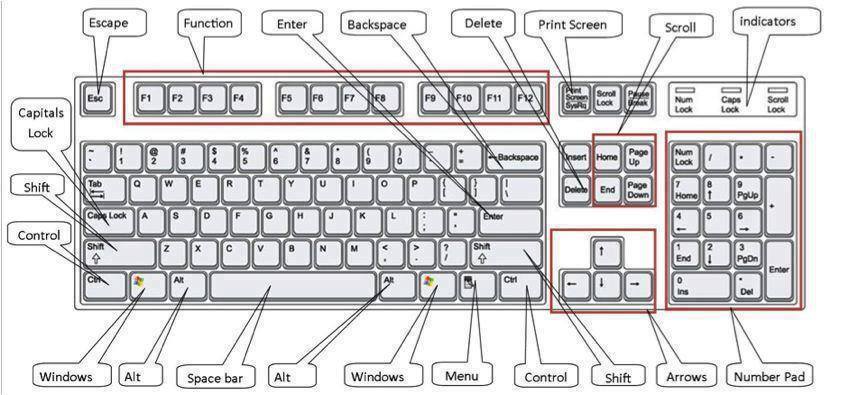
The  symbol stands for the right arrow key,  for the left arrow key, etc.
Win+↑Maximize the current window
Win+↓If the current window is maximized, restore it; if the current window is restored, minimize it
Win+←Dock the current window to the left half of the screen
*If it is already docked left, it is moved to the right half of the screen
*If it is already docked right, it is restored to its original size
Win+→Dock the current window to the right half of the screen
*If it is already docked right, it is moved to the left half of the screen
*If it is already docked left, it is restored to its original size
Win+Shift+←Move current window to the left monitor (with dual monitors)
Win+Shift+→Move current window to the right monitor (with dual monitors)
Win+HomeMinimize all but the current window
Win+SpacePeek at the desktop
Win+[Plus sign]Zoom in
Win+[Minus sign]Zoom out
Win+POpen the projection menu (generally used for laptops connected to projectors)
Alt+PIn Explorer, show/hide the preview pane

Taskbar Modifiers (New in Windows 7)
Shift+ClickOpen a new instance of the program
Ctrl+ClickCycle between windows in a group
Middle ClickOpen a new instance of the program
Ctrl+Shift+ClickOpen a new instance of the program as Administrator
Shift+Right-ClickShow window menu

Managing Windows
Alt+F4
Close the active window
Alt+TabSwitch to previous active window
Alt+EscCycle through all open windows
Win+TabFlip 3D
Ctrl+Win+TabPersistent Flip 3D
Win+TCycle through applications on taskbar (showing its live preview)
Win+MMinimize all open windows
Win+Shift+MUndo all window minimization
Win+DToggle showing the desktop
Win+↑Maximize the current window
Win+↓If the current window is maximized, restore it; if the current window is restored, minimize it
Win+←Dock the current window to the left half of the screen
*If it is already docked left, it is moved to the right half of the screen
*If it is already docked right, it is restored to its original size
Win+→Dock the current window to the right half of the screen
*If it is already docked right, it is moved to the left half of the screen
*If it is already docked left, it is restored to its original size
Win+Shift+←Move current window to the left monitor (with dual monitors)
Win+Shift+→Move current window to the right monitor (with dual monitors)
Win+HomeMinimize all but the current window
Win+SpacePeek at the desktop
Win+[Plus sign] Zoom in
Win+[Minus sign]  Zoom out

Starting Programs
Win+1Open the first program on your Quick Launch bar
Win+2Open the second program on your Quick Launch bar
Win+EOpen Explorer
Win+UOpen the ease of access center
Win+FOpen the search window
Win+XOpen the Mobility Center
Win+ROpen the Run window 
Win+BMove focus to notification tray (the right-most portion of the taskbar)
Win+POpen the projection menu (generally used for laptops connected to projectors)
Win+PauseOpen the System Properties portion from the Control Panel
Ctrl+Shift+EscOpen Windows Task Manager

Logging In And Out

While the below shortcuts seem unwieldy because of their length; they're quite easy to remember once you try them out a few times.
Win, →, EnterShutdown
Win, →, →, RRestart
Win, →, →, SSleep
Win, →, →, W
Switch Users
Win+LLocks computer

Viewing Folders With Explorer
Alt+←Go back
Alt+→Go forward
Alt+↑Go up a directory
Alt+DMove focus to address bar
Alt+D, TabMove focus to search bar
Alt+EnterOpen the Properties window of the current selection
Ctrl+Mouse-wheelChange the view type (extra-large, small, list view, detail, etc.)
Alt+PShow/hide the preview pane

MAC shortcut keys

posted May 7, 2012, 2:31 PM by Wise I.T.

Shortcut Keys Description 
Open Apple + DownOpens the selected icon.
Shift + ClickSelect the icon and add it to the set of those selected.
TabHighlight the next icon inside the folder, in alphabetical order.
Shift + TabHighlight the previous icon inside the folder, in alphabetical order.
Left arrowUsed when viewing by icon to select the icon to the left of the one highlighted.
Right arrowUsed when viewing by icon to select icon to the right of the one highlighted.
Up arrowUsed to select the icon above the one currently highlighted.
Down arrowUsed to select the icon below the one currently highlighted.
Open Apple + ?Mac help
Open Apple + EEject
Open Apple + Shift + Up ArrowUsed to direct the input focus to the desktop level.
Open Apple + MMinimize window
Open Apple + NNew finder window
Open Apple + Shift + NNew folder
Open Apple + WClose the current window.
Open Apple + CCopy the elected item to the clipboard.
Open Apple + XCut the selected item.
Open Apple + VPaste item from the clipboard
Open Apple + LMake alias
Open Apple + RShow original item
Open Apple + TAdd to favorites
Open Apple + OOpen the selected icon.
Open Apple + FDisplay the find dialog box.
Open Apple + GRepeat the last find operation.
Open Apple + Shift + GTakes a snapshot of the screen and saves it to a PICT file.

(Please note that not all of the below shortcut keys will work in all versions of Mac OS)


Linux shortcut keys

Shortcut keys Description 
CTRL + BMoves the cursor backward one character.
CTRL + CCancels the currently running command.
CTRL + DLogs out of the current session.
CTRL + FMoves the cursor forward one character.
CTRL + HErase one character. Similar to pressing backspace.
CTRL + PPaste previous line and/or lines.
CTRL + SStops all output on screen (XOFF).
CTRL + QTurns all output stopped on screen back on (XON).
CTRL + UErases the complete line.
CTRL + WDeletes the last word typed in. For example, if you typed 'mv file1 file2' this shortcut would delete file2.
CTRL + ZCancels current operation, moves back a directory and/or takes the current operation and moves it to the background. See bg command for additional information about background.

Linux Command line shortcut keys
 Shortcut keysDescription 
~Moves to the user's home directory.
!!Repeats the line last entered at the shell. 
!$Repeats the last argument for the command last used. 
resetResets the terminal if terminal screen is not displaying correctly.
shutdown -h nowRemotely or locally shuts the system down.
adduserAdd a user to the system
aliasCreate an alias 
chmodChange access permissions
echoDisplay message on screen 
mvMove or rename files or directories
mountMount a file system
manHelp manual
killallKill processes by name
passwdModify a user password
suSubstitute user identity
Remotely or locally shuts the system down.

Microsoft Windows shortcut keys

posted May 7, 2012, 2:26 PM by Wise I.T.


Shortcut KeysDescription
Alt + FFile menu options in current program.
Alt + EEdit options in current program
F1Universal Help in almost every Windows program.
Ctrl + ASelect all text.
Ctrl + XCut selected item.
Shift + DelCut selected item.
Ctrl + CCopy selected item
Ctrl + InsCopy selected item
Ctrl + VPaste
Shift + InsPaste
HomeGoes to beginning of current line.
Ctrl + HomeGoes to beginning of document.
EndGoes to end of current line.
Ctrl + EndGoes to end of document.
Shift + HomeHighlights from current position to beginning of line.
Shift + EndHighlights from current position to end of line.
Ctrl + Left arrowMoves one word to the left at a time.
Ctrl + Right arrowMoves one word to the right at a time.
Alt + TabSwitch between open applications.
Alt + Shift + TabSwitch backwards between open applications.
Alt + double-clickDisplay the properties of the object you double-click on. For example, doing this on a file would display its properties.
Ctrl + TabSwitches between program groups or document windows in applications that support this feature.
Ctrl + Shift + TabSame as above but backwards.
Alt + Print ScreenCreate a screen shot only for the program you are currently in.
Ctrl + Print ScreenCreates a screen shot of the entire screen
Ctrl + Alt + DelReboot the computer and/or bring up the Windows task manager.
Ctrl + Shift + EscImmediately bring up the Windows task manager.
Ctrl + EscBring up the Windows Start menu. In Windows 3.x this would bring up the Task Manager.
Alt + EscSwitch Between open applications on taskbar.
F1Activates help for current open application.
F2Renames selected Icon.
F3Starts find from desktop.
F4Opens the drive selection when browsing.
F5Refresh Contents to where you were on the page.
Ctrl + F5Refreshes page to the beginning of the page.
F10Activates menu bar.
Shift + F10Simulates right-click on selected item.
F4Select a different location to browse in the Windows Explorer toolbar.
Alt + F4Closes Current open program.
Ctrl + F4Closes Window in Program.
F6Move cursor to different Windows Explorer pane.
Alt + Space barDrops down the window control menu.
F8Boot Safe Mode or by pass system files as the computer is booting.
Ctrl + (the '+' key on the keypad)Automatically adjust the widths of all the columns in Windows explorer
Alt + EnterOpens properties window of selected icon or program.
Alt + Space barOpen the control menu for the current window open.
Shift + DelDelete programs/files without throwing them into the recycle bin.
Holding ShiftWhen putting in an audio CD, will prevent CD Player from playing.
EnterActivates the highlighted program.
Alt + Down arrowDisplay all available options on drop down menu.
* (on the keypad)Expands all folders on the currently selected folder or drive in Windows Explorer.
+ (on the keypad)Expands only the currently selected folder in Windows Explorer.
- (on the keypad)Collapses the currently selected folder in Windows Explorer.

Internet Explorer shortcut keys
Shortcut KeysDescription 
Alt + Left Arrow Back a page. 
Backspace Back a page. 
Alt + Right ArrowForward a page.
F5                    Refresh current page, frame, or tab. 
F11Display the current website in full screen mode. Pressing F11 again will exit this mode. 
EscStop page or download from loading. 
Ctrl + (- or +)Increase or decrease the font size, pressing '-' will decrease and '+' will increase. 
Ctrl + EnterQuickly complete an address. For example, type thewiseit in the address bar and press CTRL + ENTER to get http://www.thewiseit.com. 
Ctrl + D Add a Favorite for the page currently opened. 
Ctrl + IDisplay available bookmarks. 
Ctrl + NOpen New browser window. 
Ctrl + PPrint current page/frame.
Ctrl + TOpens a new tab. 
Ctrl + F4Closes the currently selected tab. 
Ctrl + Tab Moves through each of the open tabs. 
SpacebarMoves down a page at a time. 
Shift + SpacebarMoves up a page at a time. 
Alt + Down arrowDisplay all previous text entered in a text box and/or available options on drop down menu. 
Alt + DHighlights the text in the address bar 

Use the Internet Explorer Information Bar

posted May 7, 2012, 2:21 PM by Wise I.T.


Windows XP Service Pack 2 (SP2) includes many additional features that allow you to take control of your security when you surf the Web. Internet Explorer now displays an Information Bar (just below the address bar) where you can see information about downloads, blocked pop-up windows, potential security risks, and other activities. This information helps you to avoid potentially harmful files you might otherwise accept from the Internet. The Information Bar doesn't clutter up your browser when you don't need it. It only appears when there's information to communicate.

If Internet Explorer default settings are on, you'll see the Information Bar when a Web site tries to:

  • Install an ActiveX control on your computer.
  • Open a pop-up window.
  • Download a file to your computer.
Tip: When you see a message in the Information Bar, click the message to see more information or to take action.

What is ActiveX Control?
ActiveX controls can make browsing more enjoyable by providing video, animated content, and more. These programs can, however, malfunction or give you content you don't want. In some cases, these programs can be used to collect information from your computer in ways you might not approve of, possibly damage data on your computer, install software on your computer without your consent, or allow someone else to control your computer remotely. Given these risks, you should only install these programs if you completely trust the publisher.

Information Bar with Pop-up Blocker message

How the Information Bar Works

Sometimes Web sites will display an ActiveX control or active content that may be potentially dangerous or try to download a file to your hard drive without your knowledge or permission. This is how many people accidentally get spyware on their computer. The Information Bar notifies you when it blocks this content and then lets you decide what to do. 
Then you can view the Web page without the content that may be dangerous and if the page displays properly, you can (and probably should) choose not to display the active content. 

To install the ActiveX control

  1. Click the Information Bar.
  2. Click the install ActiveX Control


  1. If a site tries to download a program without your permission, you'll see the alert below. Then you can choose to download the program, but if you don't know and trust the source, we don't recommend it.


    If a Web site tries to download a program to your computer you will see this message. If you're certain that you want to download the file, follow the steps below:

        1. Click the Information Bar.
        2. Click Download File
        3. When prompted to download the file, read the information in the dialog box very carefully. Make sure the file is from a Web site that you absolutely trust.

    Change Your Security Settings
     
    In some cases the information bar will display a message telling you that your security settings do not allow for a particular action. Because some content could create a potential hazard to your computer, you should be certain that you trust the publisher of the Web site before you decide to install the content on your computer. 
    If you're certain that you trust the Web site, you can follow the steps below:
       
       1. On the Tools menu, click Internet Options.
       2. On the Security tab, click Default Level.

    If you are unable to change this setting, your administrator might have control over the setting.
    Important The default security settings in Internet Explorer are designed to help protect your computer from viruses and attacks over the Internet. Microsoft strongly recommends that you leave these security settings at their default level or higher.

Block Pop-up Windows with Internet Explorer

Many legitimate advertisers on the Internet use windows that pop up in the middle of your screen to display a message. They might also open when you click a link or button on a Web site, and they might open either over or under the window you wish to view. Some pop-ups are helpful. For example, if you click an image to see a larger version, it might open in a pop-up window. Unfortunately, some pop-up windows can contain inappropriate content or can be a way for you to accidentally download dangerous software (called spyware or adware) onto your computer. With Windows XP Service Pack 2 (SP2) Internet Explorer allows you to prevent most pop-up windows from appearing over pages you want to view while you're using the Internet.

Using Pop-up Blocker

When you install SP2, Pop-up Blocker is turned on in Internet Explorer and set to the medium setting, which means it will block most automatic pop-ups. The default settings for the pop-up blocker allow you to see pop-ups that are opened when you click a link or button on a Web site. Pop-up Blocker will also play a sound and show the Information Bar when a pop-up is blocked. You can adjust these settings so that Pop-up Blocker works the way you want it to.

To change Pop-up Blocker settings

  1. Open Internet Explorer.
  2. On the Tools menu, point to Pop-up Blocker, and then click Pop-up Blocker Settings.    

Internet Explorer Tools menu

If you want to see pop-up windows from a specific Web site, type the address (or URL) of the site in the Address of Web site to allow box, and then click Add.


Pop-up Blocker Settings window

Tip To temporarily allow a site to display pop-ups, click the Information Bar when it notifies you that a pop-up has been blocked. Then click Temporarily Allow Pop-ups. 
To block pop-ups even if they are launched when you click a link or button on a Web site

  1. Open Internet Explorer.
  2. On the Tools menu, point to Pop-up Blocker, and then click Pop-up Blocker Settings.
  3. Select the High setting in the box near the bottom of the dialog box.

Note: If you want to see pop-ups that are blocked when you have this setting turned on, hold down the CTRL key while the window opens.

Troubleshooting Pop-Up Blocker

If you've installed SP2 and you still see pop-ups in Internet Explorer, try the possible solutions below.

Make sure Pop-up Blocker is turned on: Pop-up Blocker is turned on by default, but someone may have turned it off.

To turn on Pop-up Blocker

  1. On the Tools menu, point to Pop-up Blocker.
  2. Click Turn on Pop-up Blocker.
  • Rid your system of spyware: If you get similar pop-up windows no matter what sites you visit or even if you're not on the Web at all, you could have spyware, adware, or other software on your computer that's launching pop-ups. To stop these pop-ups, you will have to identify the software, then remove it or change its settings to stop it from launching pop-ups. To learn more about this read How to Protect Your Computer from Spyware and Adware.
  • Some windows are not blocked: Pop-up Blocker is smart enough to not block pop-up windows that you open deliberately by clicking a link—for example, if you were on a travel reservation site and you clicked a link to open a pop-up window containing your confirmation details, this pop-up window would not be blocked because you opened it intentionally. Also, Pop-up Blocker will not block some pop-ups with certain types of animated content or pop-ups from Web sites that are in two Web content zones: Local intranet or Trusted sites.

Control Internet Explorer Add-ons with Add-on Manager

Web browser add-ons give different functionality to your Web browser to make browsing a little more fun or effective. Extra toolbars, animated mouse pointers, and stock tickers are all examples of browser add-ons.
Some add-ons are installed with Microsoft Windows. Many add-ons come from the Internet. Most add-ons from the Internet require that you give your consent before they're downloaded to your computer. Some, however, might be downloaded without your knowledge. This can happen if you previously gave permission for all downloads from a particular Web site or because the add-on was part of another program that you installed. Some add-ons don't ask for your consent at all.
Add-ons are typically fine to use, but sometimes they slow down your computer or force Internet Explorer to shut down unexpectedly. This can happen if the add-on was poorly built or created for an earlier version of Internet Explorer. In some cases, an add-on may be tracking your Web surfing habits. For more information on this, read 
Protect Your Computer from Spyware and Adware. 
If you're running Windows XP Service Pack 2 (SP2) you can use the new Internet Explorer Add-on Manager to help make the add-ons that you do want function properly and to easily get rid of the ones you don't want.

Using the Add-on Manager

Since some add-ons get installed without your knowledge, it's a good idea to first take stock of what add-ons your version of Internet Explorer currently contains. The Add-on Manager allows you to see a list of all the add-ons for Internet Explorer. The list is divided into two categories:

  • Add-ons that have been used by Internet Explorer: a complete list of the add-ons that reside on your computer.
  • Add-ons currently loaded in Internet Explorer: the add-ons that were needed for the current Web page or a recently viewed Web page.
To see a list of all add-ons used by Internet Explorer

  1. Open Internet Explorer.
  2. On the Tools menu, click Manage Add-ons.
Tools menu
     3.  In the Show box, click the set of add-ons that you want to see.

Add-on Manager

The Add-on Manager can do the following:
  • Update: If the add-on is making your computer unstable, but you don't want to get rid of it, an updated version might be what you need to solve those problems. If the add-on is an ActiveX control, you can check to see if the item has been updated.
  • Disable: If an add-on causes repeated problems or if you didn't want it in the first place, you can disable the add-on. Disabling an add-on does not remove it, it just keeps Internet Explorer from using it.
  • Enable: If you can determine which add-ons are causing you problems and which aren't, you can re-enable only the add-ons you want.
  • Report: When prompted, please allow the problem to be reported to Microsoft. This is completely anonymous and requires nothing from you but permission. These reports are used to improve our products and to encourage other companies to update and improve theirs.
Note Some Web pages might not display properly if an add-on is disabled. We recommend that you only disable an add-on if it repeatedly causes Internet Explorer to close.

Get Started

posted May 7, 2012, 2:19 PM by Wise I.T.   [ updated May 7, 2012, 2:25 PM ]

  • Location of the Outlook toolbar and Deskbar Windows Desktop Search comes with the MSN Search Toolbar, a free tool that helps you quickly find content on the Web and on your computer. 

To get started:

A: Install MSN Search Toolbar with Windows Desktop Search

  1. Go to the MSN Search Toolbar download page and click Download Toolbar Now.

  2. Click Save, and then click Save again when your Desktop folder opens.

  3. When the download is complete, click Run.

B: Let Windows build an index

After you complete the installation, Windows Desktop Search will automatically build an index of your hard disk. An index is a list containing information about all of the files on your computer. Building this index takes a few minutes, depending on the size of your disk, but will make every search much faster. Indexing doesn’t require any work on your part Windows will automatically update your index whenever you add or change files.

Search your desktop
Windows Desktop Search is included in all three MSN Search Toolbars
:

  • MSN Search Deskbar lets you search the Web and your computer without interrupting your current task. The Deskbar sits on your Windows taskbar, near the clock.

  • MSN Search Toolbar for Internet Explorer and Windows Explorer lets you search the Web and your computer without having to open a search page.

  • MSN Search Toolbar for Outlook lets your search within an e-mail message, an appointment, an e-mail attachment, a contact, or a document on your computer or on the Web. The Toolbar for Outlook appears near the top of the Outlook window.

    To begin searching your desktop, follow the instructions below for the toolbar you want to use.

     Toolbar Instructions

    MSN Search Deskbar


     1. Type your search terms in the search box. The best match for your search appears as you type.

     2. Click
     to see your results in separate window.


     MSN Search Toolbar for Internet Explorer and Windows Explorer


     1. Type your search term in the search box.

     2. Click the arrow next to 
    Search Web, and then click Search Desktop.  
     MSN Search Toolbar for Outlook

     1. Type your search term in the search box.

     2. Click the 
    Search arrow, and then click Outlook or Desktop.
    By default, Desktop search will search all of your Outlook messages.

Tip and tricks for finding your files with Windows Desktop Search
Get the best performance from Windows Desktop Search by applying these techniques to your searches. Use AND, OR, and NOT
Join search terms with the operators AND, OR, and NOT to zero in on files quickly. Be sure use capital letters, as shown below:

OperatorExampleResult
ANDguitars AND electricYour search results will contain all the files that include both terms.
ORguitars OR amplifiersYour search results will contain files that mention either guitars or amplifiers.
NOTguitars NOT banjosYour search results will contain files that mention guitars, but not banjos.

Example of searches with AND

Example of searches with OR
Example of searches with NOT
Vary your search terms
If what you typed didn’t yield any useful results, try typing it another way. For example, if you are looking for a guitar, you might type:
guitar 
If you get too many results, your search might be too general. Make it more specific by adding some details:
yellow electric guitars 
If you get too few results, be a little less specific:
electric guitars
Example of searches that are too specific
Example of searches that are just specific enough
Example of searches that are not specific enough
Wrap your search in quotation marks
If you’re looking for a file that contains an exact phrase, surround your search with quotation marks. If you type a search term without quotation marks, such as:
wooden guitars 
You might yield results that include the word "wooden," the word "guitar," or both. But if you type the same search term with quotation marks:
"wooden guitars" 
You will only yield results that contain those exact words in that exact order.
Tell Desktop Search more
The more information you provide about your file, the quicker Desktop Search can find it. You can narrow your search by including the date you created your file, its type (such as .xls, .gif, or .doc), or a phrase in the document.

1-6 of 6